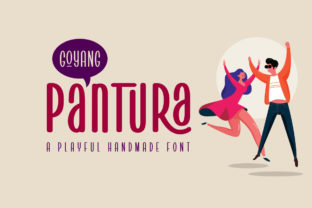
Pantura
Pantura is a display font designed for clarity, personality, and purpose—not just decoration. It’s not meant to sit quietly in the background or fill space without intent. Instead, Pantura works where visual hierarchy matters most: headlines, banners, logos, slide titles, product packaging, and interface elements that need to communicate quickly and confidently. Its modern proportions, balanced weight distribution, and carefully tuned letterforms give it strong legibility even at smaller sizes—unusual for a display typeface. That practicality makes Pantura especially useful for professionals who need design impact without sacrificing readability or accessibility.
Where Pantura Fits in Your Workflow
Fonts aren’t isolated assets—they’re part of a chain of decisions. Pantura enters that chain early, often during the framing phase of a project: when you’re defining tone, audience expectations, and visual identity. For example, a marketer building a campaign for a new productivity app might test Pantura against more neutral sans-serifs like Inter or more decorative alternatives. Pantura’s smart, slightly playful energy signals approachability and competence—ideal for tools aimed at freelancers or educators who value both efficiency and humanity. In that context, choosing Pantura isn’t just aesthetic; it’s strategic alignment.
During execution, Pantura shines in high-visibility roles. Use it for hero section headings on landing pages, chapter titles in digital course materials, or bold callouts in email newsletters. Its uppercase and lowercase forms are distinct but harmonious, so it adapts well to mixed-case usage without looking disjointed. Unlike many display fonts, Pantura includes a full set of OpenType features—including stylistic alternates and ligatures—that let you fine-tune rhythm and emphasis without switching families. That means fewer font swaps, less CSS overhead, and tighter consistency across platforms.
Integration Across Tools and Teams
Pantura works cleanly with common design and development environments. In Figma or Adobe XD, it loads reliably as a web font or local install, and its spacing metrics align well with standard layout grids. Developers appreciate that Pantura’s variable font version (if available) supports axis-based adjustments—weight, width, and optical size—without loading multiple files. That reduces page weight and simplifies responsive typography logic. When paired with a robust text stack like Inter or IBM Plex Sans for body copy, Pantura creates clear typographic contrast without visual competition.
For teams, Pantura’s clarity helps reduce subjective feedback loops. A client reviewing a brand guideline doc may struggle to articulate why a font “feels off,” but they’ll instantly recognize when Pantura delivers the right balance of modernity and trustworthiness. That shared visual reference point speeds up approvals and reduces revision rounds—especially valuable for agencies, freelance designers, or in-house marketing teams managing tight deadlines.
Practical Implementation Tips
- Start with hierarchy, not decoration: Reserve Pantura for elements that need to be seen first—navigation labels, section headers, key benefit statements—not body text or captions.
- Test contrast early: Pantura’s medium weight reads well on light and dark backgrounds, but avoid ultra-thin or ultra-bold variants for small UI text. Stick to Regular through SemiBold for optimal legibility at 24px and above.
- Leverage optical sizing: If using the variable version, adjust the
opszaxis based on context—e.g., opsz=36 for large banners, opsz=24 for mobile headers. This improves stroke balance and character clarity at different scales. - Pair intentionally: Pair Pantura with a neutral, highly legible sans-serif for paragraphs and captions. Avoid other display fonts in the same composition—Pantura carries enough presence on its own.
- Check licensing for your use case: Confirm whether your intended deployment—web, app, print, or video—falls within the license terms. Some versions include extended permissions for SaaS platforms or embedded digital products.
Using Pantura Before, During, and After Projects
Before: Pantura can shape your planning. Sketching wireframes? Drop in Pantura for headline placeholders to gauge real-world spacing and emphasis. Building a content calendar? Use Pantura-styled social post templates to preview how messaging lands visually before writing a single caption. That pre-execution testing surfaces usability issues early—like awkward line breaks or inconsistent emphasis—before assets go into production.
During: As projects evolve, Pantura supports iteration. A blogger refining a series of educational infographics might use Pantura for data point labels to create instant visual distinction from explanatory text. An educator designing workshop handouts could apply Pantura to learning objectives and section dividers—reinforcing structure while keeping the tone engaging. Because Pantura renders consistently across browsers and devices, what you see in design tools closely matches final output, reducing last-minute formatting surprises.
After: Pantura contributes to long-term brand coherence. When reused across reports, presentations, and customer-facing dashboards, it becomes a quiet but consistent signal of your team’s standards—modern, intentional, human-centered. Revisiting old projects months later, you’ll notice how Pantura helped maintain visual continuity even as content and platforms changed. That consistency builds recognition and reinforces credibility over time, especially for solopreneurs or small businesses without dedicated design resources.
Efficiency, Consistency, and Long-Term Use
Pantura supports efficiency not by cutting corners—but by reducing decision fatigue. Once you’ve established where and how it fits in your system (e.g., “Pantura = primary headings only, always paired with Inter for body”), applying it becomes automatic. That frees mental bandwidth for higher-level choices: messaging strategy, user flow, or content sequencing.
Consistency comes from disciplined application—not rigid rules. You don’t need Pantura in every heading, but when you do use it, keep weight, size, and spacing aligned with documented guidelines. A simple style tile or Figma library component ensures anyone on your team (or any contractor you hire) applies it the same way. Over time, that predictability strengthens your visual language and makes audits or redesigns faster and more focused.
Long-term use also benefits from Pantura’s technical stability. It’s built with modern font standards, supports Unicode ranges for international projects, and includes hinting for crisp rendering on Windows and legacy displays. That means it won’t require replacement mid-project due to compatibility gaps—and it scales gracefully as your audience grows across devices and regions.
A Tool That Supports Your Intent
Pantura doesn’t replace strategy—it amplifies it. Whether you’re launching a new course platform, redesigning internal documentation, or building a personal portfolio site, Pantura gives your most important messages the visual weight they deserve—without shouting or overcomplicating. It’s a reminder that good typography isn’t about novelty alone; it’s about matching form to function, voice to audience, and intention to outcome.
Use it where attention needs direction. Apply it where clarity meets character. Choose it when you want your work to feel both current and considered—not trendy, but timeless in its utility.